

File Verification Software for Confident Deliveries
Know your delivery is ready before you send it.
TavrendoPass is Windows file verification software that checks delivery folders against reusable requirements, verifies folders against Saved Records, and compares two current folders or saved folder versions. Review clear results and save documentation before sending, archiving, or handing off your files.
Version 1.1 — now with direct folder comparison and improved results reporting.

Check Folder
Check a folder against a reusable Profile to identify missing required files, empty files, exact duplicates, naming problems, size limits, sequence gaps, and other configured issues.
Compare Two Live Folders
Choose Folder A and Folder B to compare their current contents directly. Review added, removed, modified, and unchanged files without first creating Saved Records.
Local by design
TavrendoPass performs folder checks locally on your Windows system, helping you review deliveries without requiring the checked folder contents to be uploaded to a cloud service.

Local/offline-first
Folder checks, verification, and version comparisons are designed to run locally on your Windows system.

Read-only audits
TavrendoPass checks and reports without silently moving, renaming, overwriting, repairing, deleting, or cleaning the files in the selected folder.
File Verification Software Workflows
Check folder requirements, verify copied or existing folders, compare changes, and save results—all in one Windows application.

Verify Folder
Compare a current folder with an earlier Saved Record using file paths and SHA-256 fingerprints to identify matched, missing, unexpected, or modified files.
Compare Saved Versions
Compare an Earlier Version Saved Record with a Newer Version Saved Record to review changes between recorded folder states.
Reuse your delivery requirements
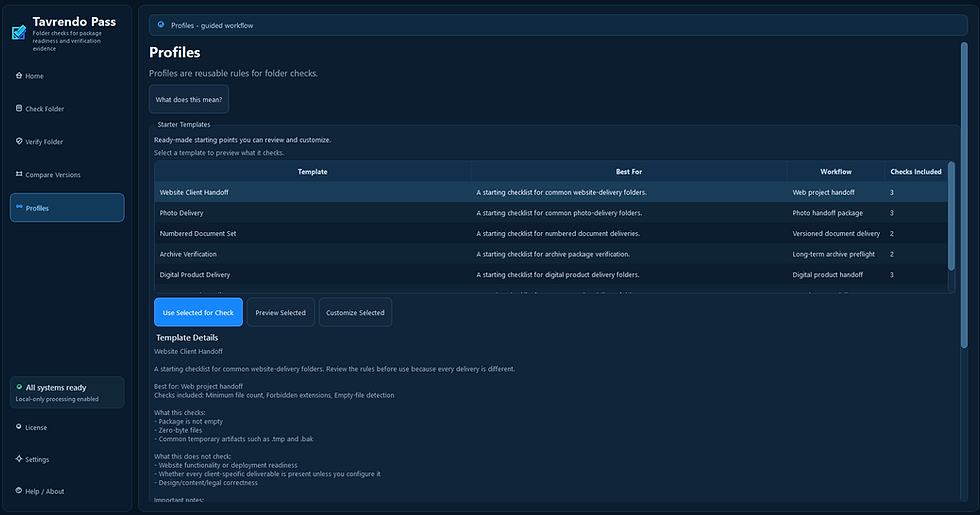
Create reusable Profiles for different folder requirements so the same rules can be applied consistently across repeated checks.


Verify After Copy or Delivery
Use a guided workflow to verify a destination folder against an earlier Saved Record after copying or transferring your files.
Repeat Recent Check
Restore a recent folder and Profile setup, then run a fresh check against the folder’s current contents.
Tavrendo Folder Verification Tools
From checking a delivery folder to verifying it later or comparing saved versions, Tavrendo gives you a repeatable Windows workflow for checking requirements, understanding results, and keeping a record of what was checked.
Check folder requirements, verify against Saved Records, or compare two current folders—all locally on Windows.


Check Folder
Check Results
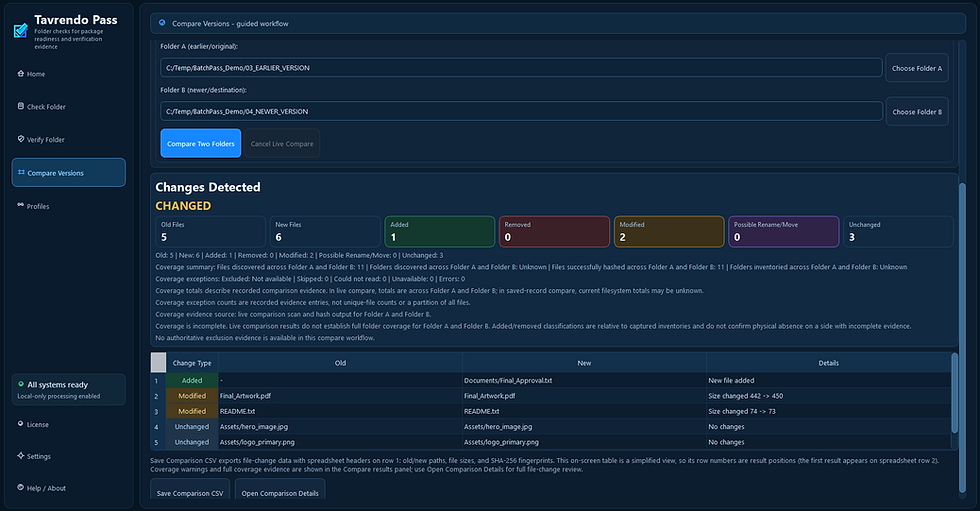

Compare Two Live Folders
Verify Folder

Compare Saved Versions (SHA-256 file fingerprints)
Profiles
Results you can review and keep
Review Check, Verify, and Compare results in the main application window. See file changes, coverage information, and recorded exceptions, then save the available reports or CSV outputs for your records. Open additional comparison details when you need them.
Clear results
PASS, WARN, and FAIL for configured folder checks, plus verification and comparison summaries.
Coverage information
Review observed inventory, hashing information where available, and recorded exceptions or limitations.
Useful exports
Save check reports, verification results, comparison CSVs, and Saved Records for later use.
Comparison CSVs include old/new paths, file sizes, and SHA-256 fingerprints beyond the simplified on-screen table. Coverage notes remain in the application’s results panel.
How it works
Choose a workflow, select your folders or Saved Records, review the results, and save the available documentation.
01 — Choose Your Workflow
Check folder requirements, verify against a Saved Record, or compare two folders or saved versions.
02 — Select Your Inputs
Choose a folder and Profile for Check, a folder and Saved Record for Verify, or the two folders or records you want to compare.
03 — Run and Review
Follow progress and review the results, file changes, and available coverage information.
04 — Save Your Results
Save the reports, CSV outputs, or Saved Records available for your chosen workflow.
05 — Repeat or Verify Later
Restore a recent check setup for a fresh check, verify a copied folder, or compare a later version.
Built for repeatable file handoffs
TavrendoPass helps when a folder needs to be complete, consistent, and ready before it is sent, archived, or handed off.
Catch problems before delivery
Check a folder against your requirements and find missing files, empty files, naming problems, exact duplicates, size issues, sequence gaps, and other defined problems before handoff.
Repeat the same standards
Save reusable Profiles so recurring deliveries can be checked against the same requirements without rebuilding the rules every time.
Keep proof and verify later
Save reports and Saved Records as evidence of what was checked, then use them later to verify a folder or compare saved versions.
Common Questions
Is TavrendoPass cloud-based? and Does TavrendoPass upload my delivery files?
TavrendoPass checks folders locally without requiring your delivery files to be uploaded. Internet access is required for initial license activation. A successfully activated Full License can continue working offline.
How does TavrendoPass check delivery-folder readiness?
TavrendoPass checks a delivery folder against the reusable requirements defined by a selected Profile. Depending on those rules, it can identify issues such as missing content, empty files, exact duplicates, filename problems, file-size limits, numbered sequence gaps, and other defined conditions.
Is the software read-only?
TavrendoPass checks and reports without silently moving, renaming, overwriting, repairing, deleting, or cleaning the files in the selected folder.
Can I compare older and newer versions?
Compare an Earlier Version Saved Record with a Newer Version Saved Record to see added, removed, modified, and unchanged files. TavrendoPass may also identify possible rename or move candidates. This compares the two recorded folder states; to compare folders as they exist now, use Compare Two Live Folders.
What are reusable profiles?
Profiles are reusable sets of folder requirements. They let you save requirements for different delivery types and apply the same standards repeatedly instead of rebuilding the rules for every check.
Which Windows versions are supported?
TavrendoPass runs on Windows 10 and Windows 11, 64-bit.
Are possible renames confirmed?
No. Matching content can suggest a possible rename or move, but it does not prove how the file changed location.
What is the difference between Verify Folder and Compare Versions?
Verify Folder checks a current folder against an earlier Saved Record. Compare Versions compares two Saved Records or two current folders to show differences between them.
Can TavrendoPass compare folder contents on Windows?
Yes. TavrendoPass 1.1 can compare two current folders directly without first creating Saved Records. It also supports saved-version comparison and verification against an earlier Saved Record.
Can I verify files after copying or delivery?
Yes. Create a Saved Record of the source folder, copy or transfer your files using your usual tools, then use Verify After Copy or Delivery to check the destination against that record. TavrendoPass verifies the files; it does not perform the transfer.
Can I save the results?
Yes. Depending on the workflow, TavrendoPass offers check reports, verification CSVs and readable reports, comparison CSVs, and Saved Records.
What does PASS mean?
PASS means the folder met the checks enabled in the selected Profile. Review the Profile and coverage information to understand what was checked and any recorded limitations.
Does TavrendoPass inspect files inside ZIP archives or PDFs?
TavrendoPass checks ZIP and PDF files at the file level. It does not inspect archive contents or the internal content of PDF documents.
What is a Saved Record?
A Saved Record captures file paths, sizes, and SHA-256 fingerprints from a folder scan. Use it later to verify a current folder or compare recorded versions.
Does TavrendroPass copy or synchronize files?
No. TavrendoPass checks and compares files. Use your usual tools to copy or transfer them, then use TavrendoPass to verify the destination.
Does Repeat Recent Check reuse an old result?
No. It restores a recent folder and Profile setup so you can run a fresh check against the current contents.
Try TavrendoPass
Try TavrendoPass free for 7 days, or purchase the Full License for unlimited use.

TavrendoPass Desktop
Windows desktop license
$29
$39

7-day trial
Folder checks against reusable Profiles
Verification against Saved Records
Guided verification after copy or delivery
Direct comparison of two folders
Saved-version comparison
Repeat recent check setup
Reports, CSV exports, and Saved Records
Local-first processing
Read-only audits

Download for Windows 10 / 11 (64-bit)

One-Time Payment
Download the 7-day trial or purchase the Full License today.